
How to prevent CatchPulse from blocking new Windows files during a major Windows update?
To prevent CatchPulse from blocking new Windows files during a major update, you can temporarily enable Trust any file in Windows Folder setting in CatchPulse Policy → Protection Mode.
To enable Trust any file in Windows Folder setting
-
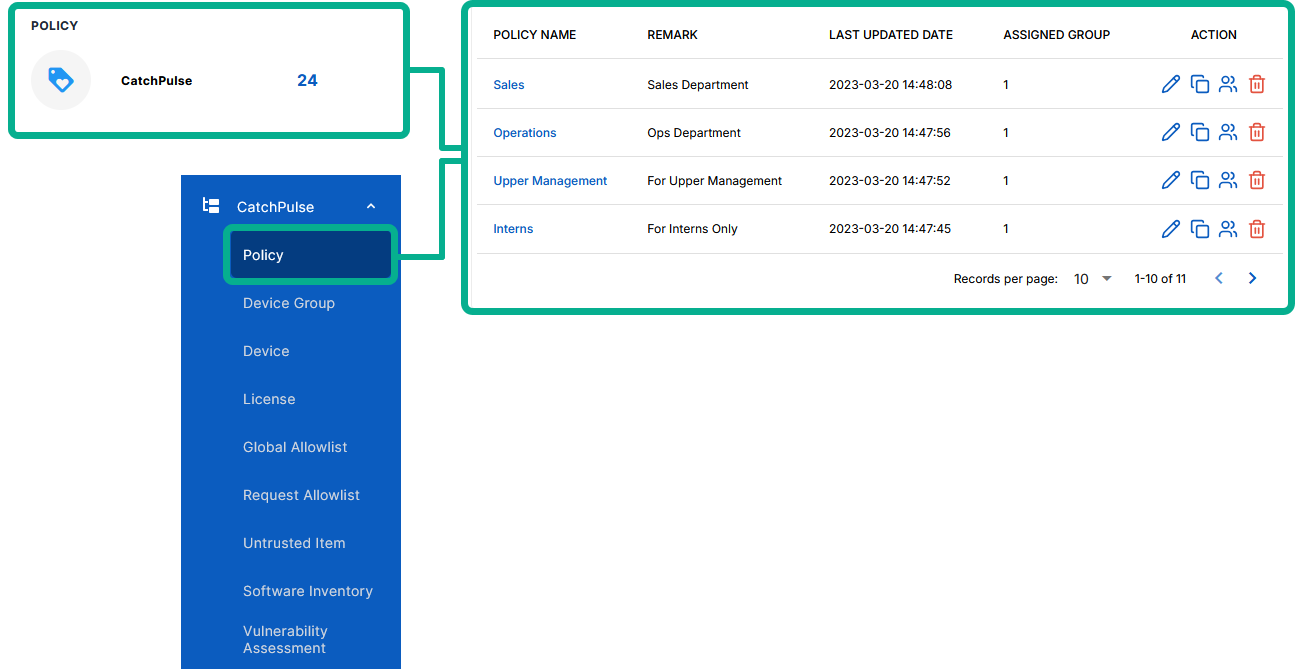
From the main navigation bar, go to CatchPulse → Policy.
-
Do one of the following:
-
Click Policy from the top right corner of the Policy page, or
-
Select a policy and click on the corresponding
 button.
-
-
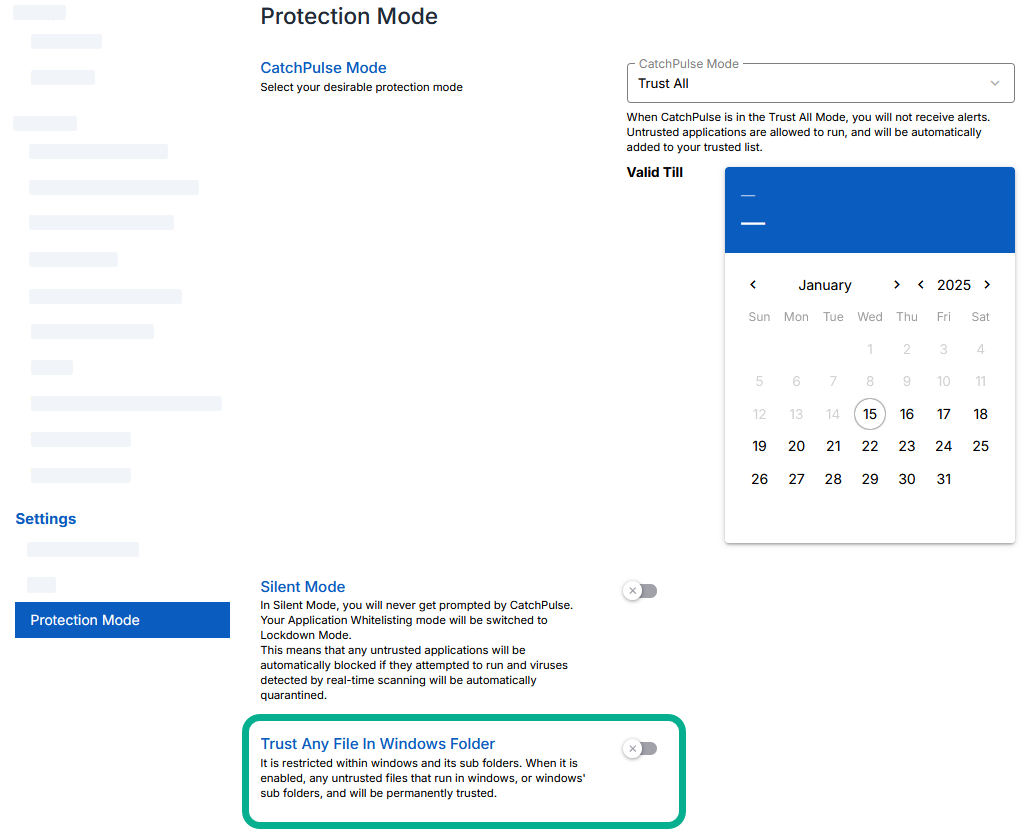
Under Settings → Protection Mode, enable the Trust Any File in Windows Folder toggle.
-
Select Update Policy to save changes.
The notification panel at the bottom of the page indicates the Command Line Rules was added or saved.
Note: Remember to disable this setting once the Windows update is complete to maintain your usual level of security.
Support and feedback
Should you encounter any issues using the SecureAge Central with any of the mentioned or missed requirements above, you can always write to us a docs@secureage.com.
This page was last updated: August 12, 2025