
Associate file script extension types to script interpreter
To associate file script extension types to script interpreter
-
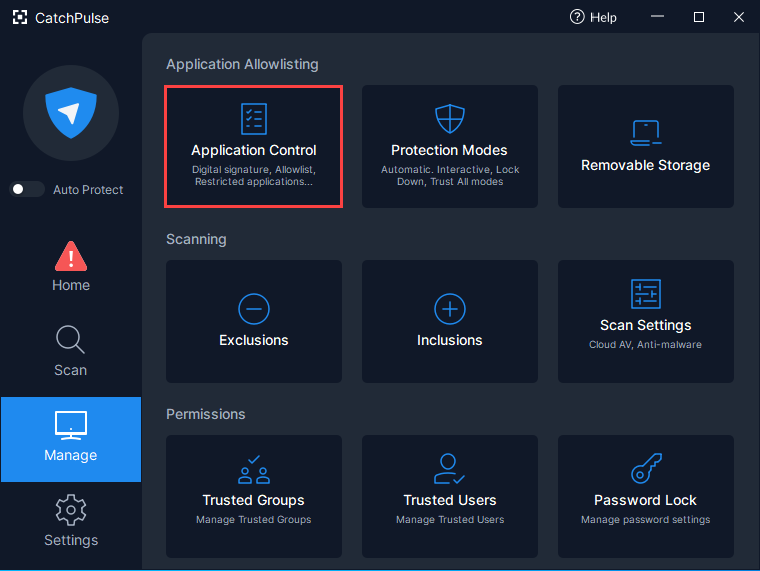
Launch CatchPulse and select Manage → Application Control.
-
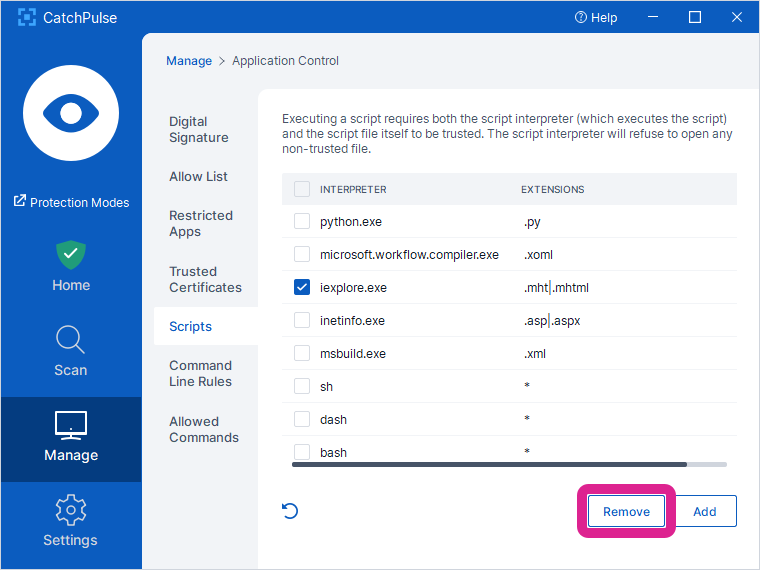
In the Scripts tab, you can choose to associate script file extension types to script interpreter.
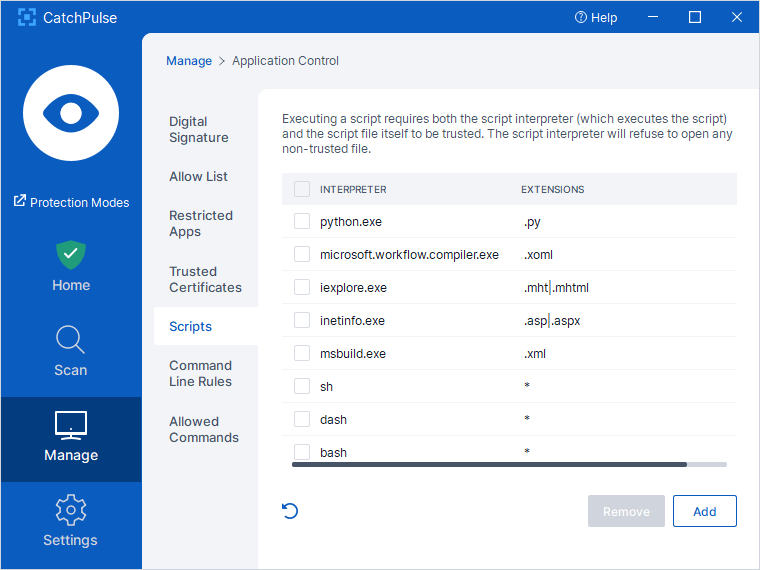
In Application Allowlisting, executing a script requires both the script interpreter (which executes the script) and the script file itself to be trusted. The script interpreter will refuse to open any non-trusted file.
If the script has a higher trust level than the script interpreter, the script interpreter trust level will match its trust level to the trust level of the script file. On the other hand, if the script has a lower trust level than the script interpreter, the script interpreter will be running at its own trust level.
Follow these instructions below to add, edit, remove and restore factory settings to your script interpreter:
To add script interpreter
-
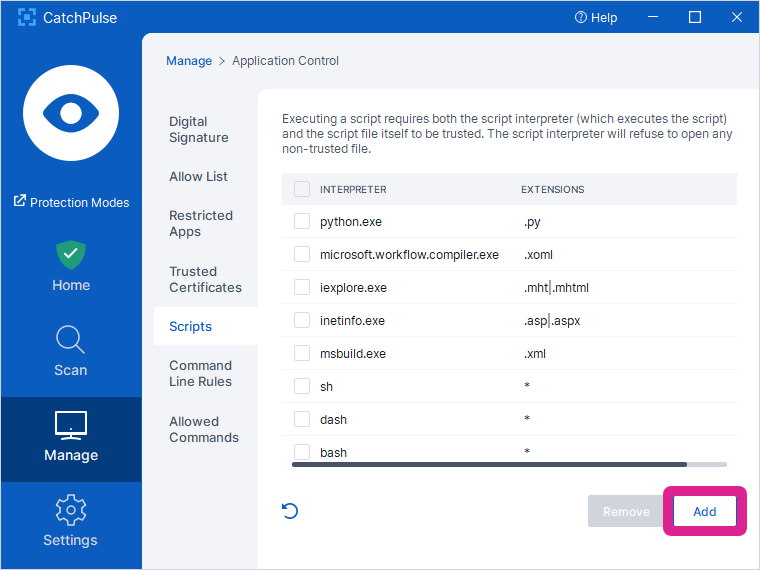
Click Add.
-
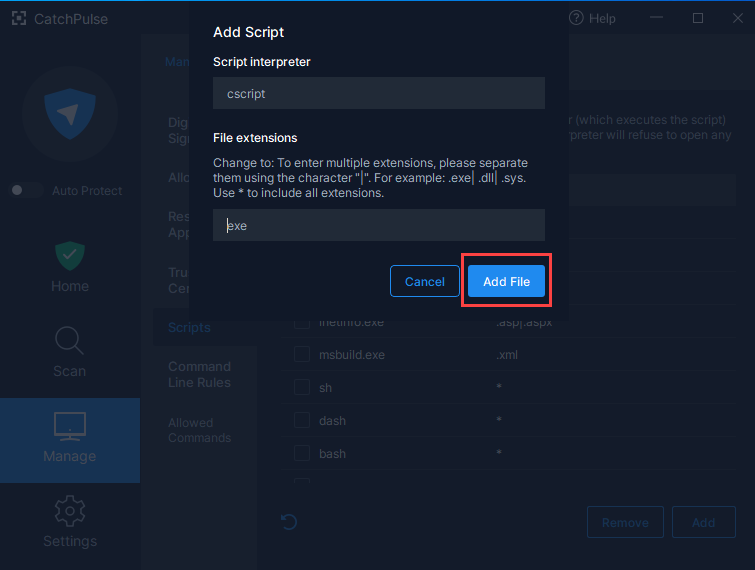
In Add Script window, click on Add File to select the script interpreter executable file.
-
Enter the File extensions to be executed by the script interpreter selected above.
-
For multiple script file extensions, type a pipe ‘|’ to separate the two script file extensions.
-
To include all types of script file extensions, type ‘*’.
-
-
Click Add once you are done with the above steps, otherwise, you can click Cancel to exit the Add Script window.
-
The newly added script interpreter will be added to the list.
To remove script interpreter
-
Check on the script interpreter from the list that you want to remove, click Remove.
If you have made changes to the extensions of the default interpreter listed by CatchPulse, those will be reverted back to factory settings.
To restore script intepreter and the file extensions associated to the script to factory settings
Note: Assuming that you have modified the default extensions of the default interpreter.
To restore script interpreter and the file extensions associated to the script to factory settings
Note: Assuming that you have modified the default extensions of the default interpreter.
-
Select Restore button.
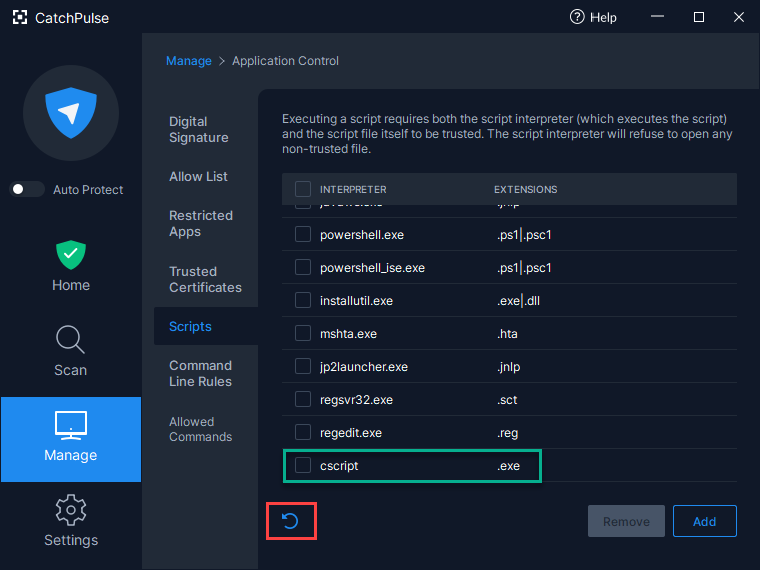
Factory settings for Script restored.
Note: If you’ve added your own extensions, it will still remain on the list after selecting the Default button
Support and feedback
Should you encounter any issues using CatchPulse with any of the mentioned or missed requirements above, you can write to us at docs@secureage.com.
This page was last updated: May 12, 2026