
Manage my list of trusted certificates
To manage the list of trusted certificates,
-
Launch CatchPulse → Manage.

-
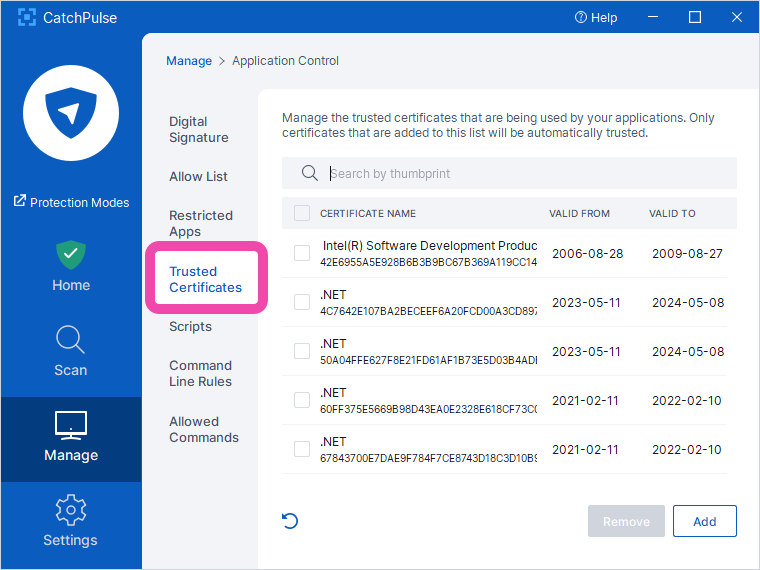
In the Manage menu, click on Application Control → Trusted Certificates.
-
In the Trusted Certificates tab, you can choose to manage the list of trusted certificates which are being used by the applications. Applications with their certificate listed under the Trusted Certificates list will be trusted
-
Follow the following instructions to add, remove and restore your trusted certificate:
To add a trusted certificate
-
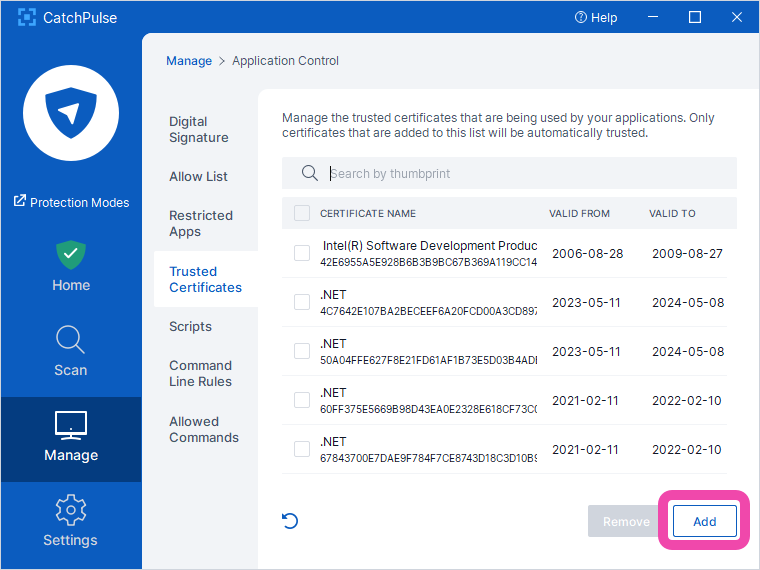
Click the Add button.
-
In Add Trusted Certificate from File window, click on Browse button to select the executable file. Then click Add.
-
The newly added trusted certificate will be added to the list.
To remove a trusted certificate
-
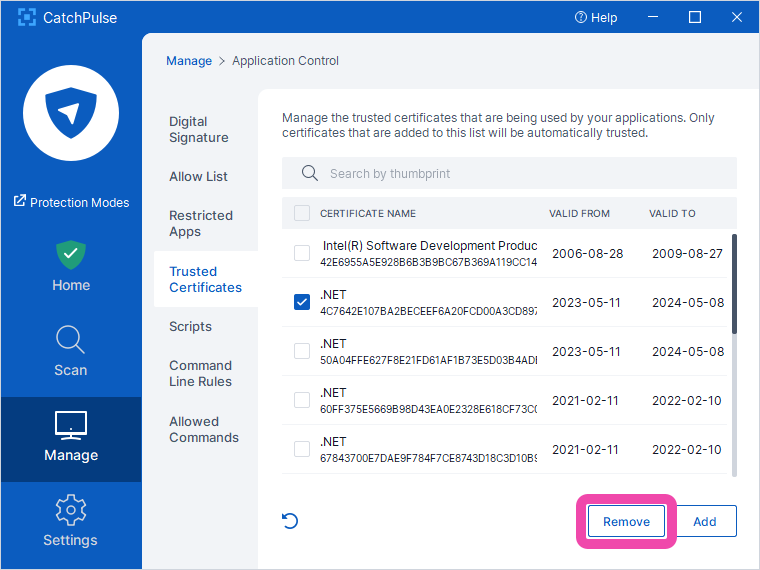
Check on the trusted certificate from the list and click the Remove button.
-
The selected trusted certificate will be removed from the list.
To restore a trusted certificate
-
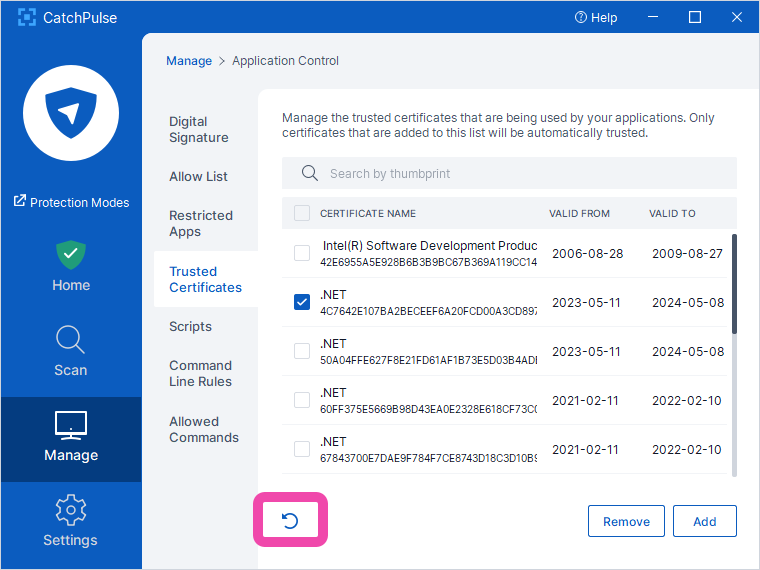
Click on the Restore button.
-
The Trusted Certificates list will be restored and updated.