
Set applications as restricted application
By default, CatchPulse is set to trust files as a trusted installer based on their digital signature and allow an application with a valid digital signature to be trusted as an installer if its certificate name is found in the Trusted Certificate list. Hence, some applications can be promoted into a Trusted Installer without prompting the user. By adding the application in the Restricted Applications list, it will not automatically bring in other applications that may potentially harm the user's system.
Learn More On How to Manage my Application Allowlisting mode using Digital Signature
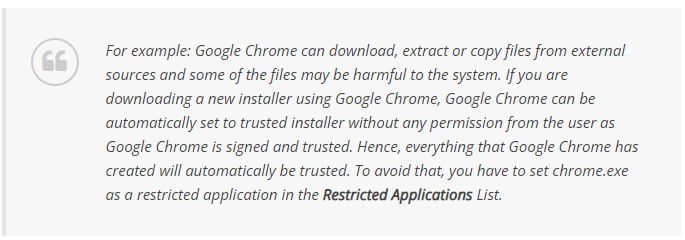
To set applications as restricted applications
-
Launch CatchPulse → Manage.

-
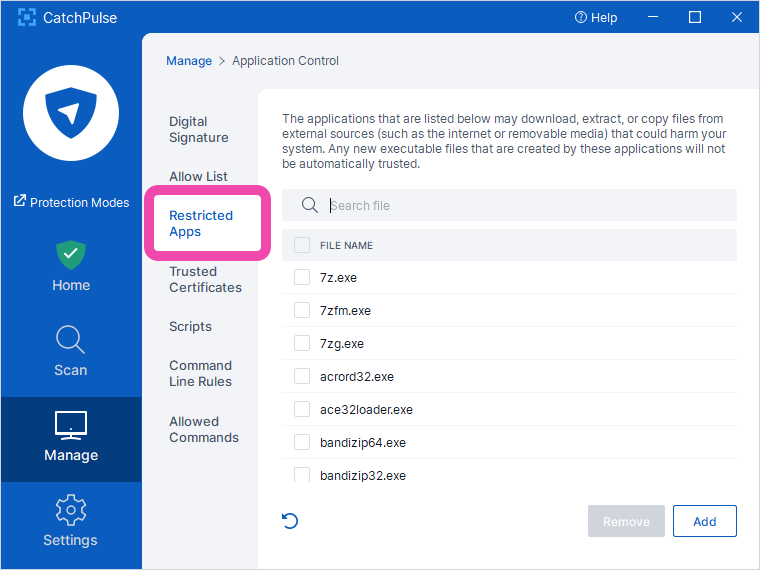
In the Manage menu, click on Application Control → Restricted Apps.
-
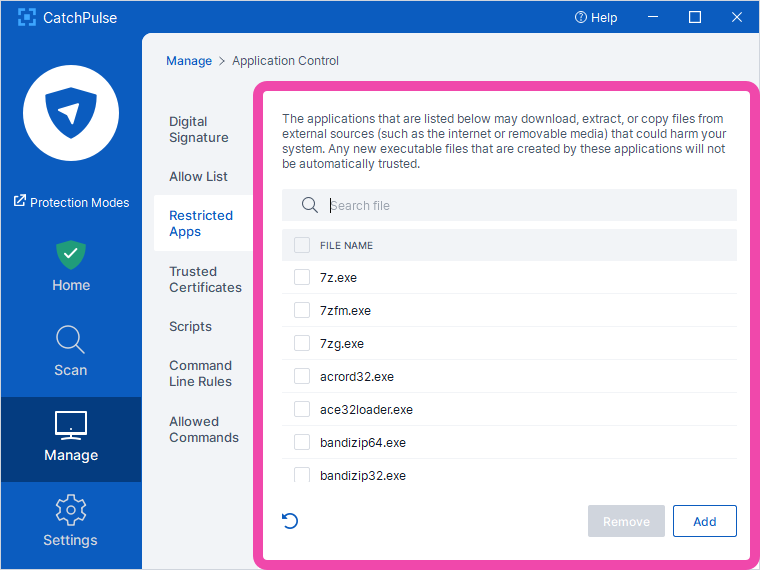
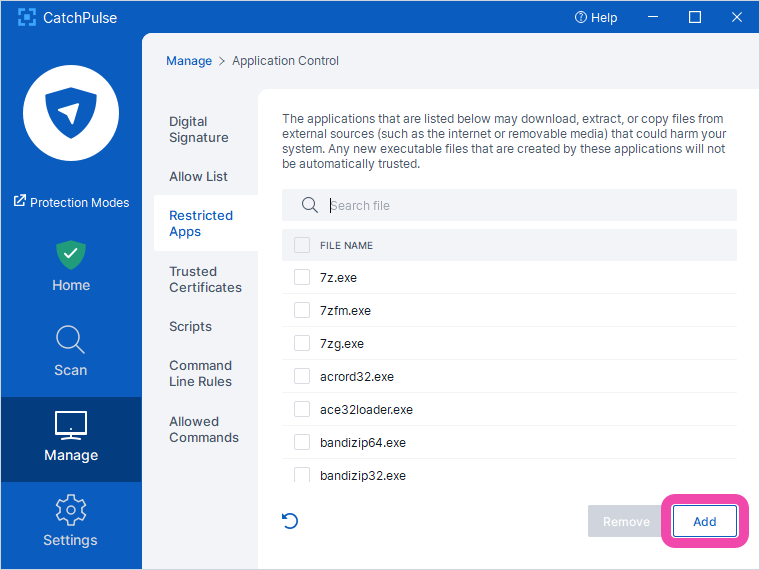
In the Restricted Applications tab, you can choose to set the application as a restricted application (trusted application with restrictions) in which any new files created by it will not be automatically trusted.
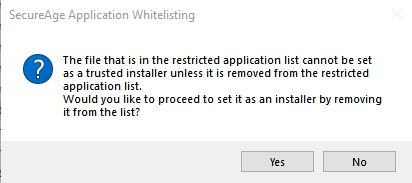
Restricted Application cannot be set to Trusted Installer without removing it from the restricted application list. If you try to set to Trusted Installer, you will receive a prompt as shown below:
Follow these instructions below to add, edit and remove your restricted applications:
To add a restricted application
-
Click the Add button.
-
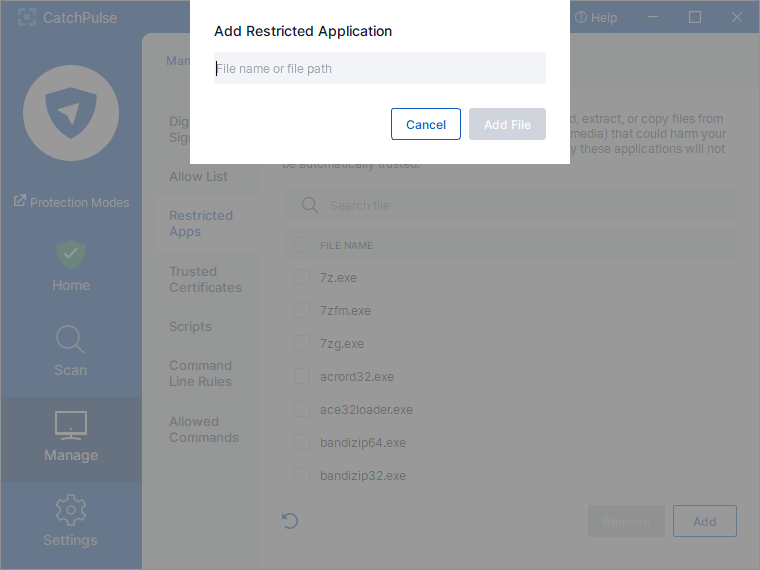
In the Restricted Application window, click on Add to enter the file name without path, or full path file name.
-
The newly added restricted application will be added to the list.
To remove a restricted application
-
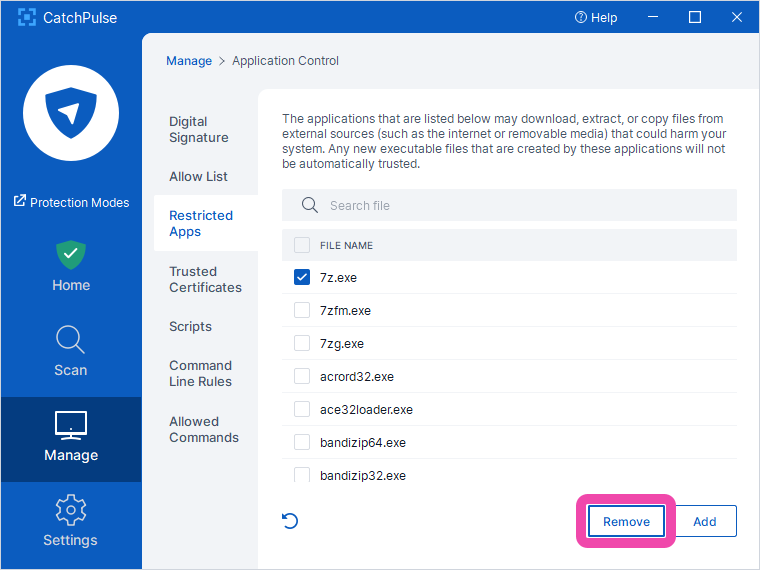
Check on the restricted application from the list that you want to remove and click the Remove button
To restore a restricted application
-
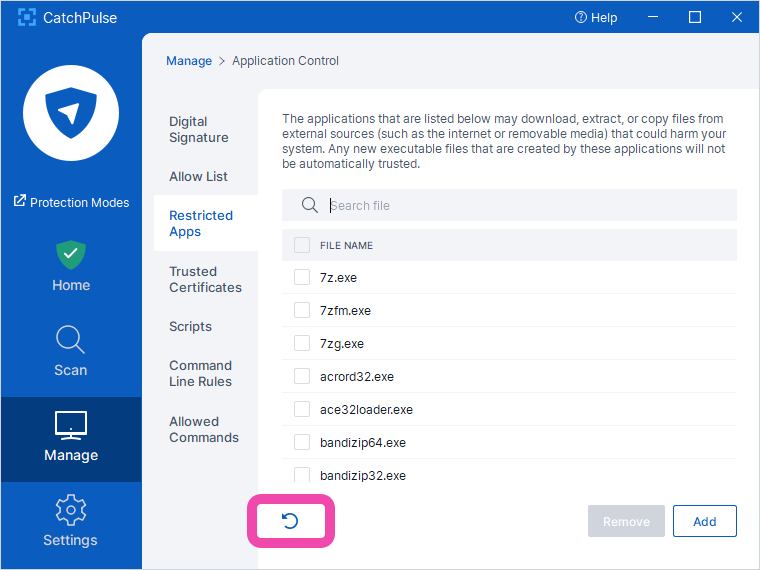
Click the Restore button.
-
The Restricted Applications list is restored and updated.