
Schedule an automatic Full System Scan
Note: This feature is only available in the CatchPulse Account Portal.
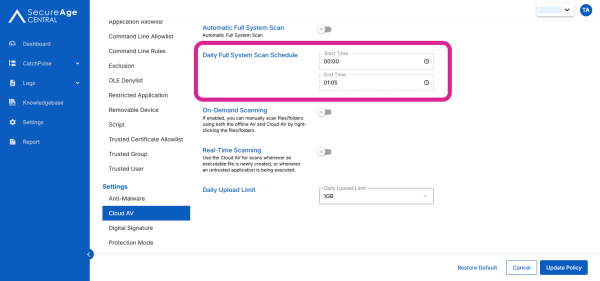
You can schedule to run Cloud AV automatically during off-peak hours (recommended). This is especially useful for enterprise customers, who prefer not to have any background programs using up computer resources during peak hours.
To schedule an automatic full system scan in your CatchPulse Account Portal
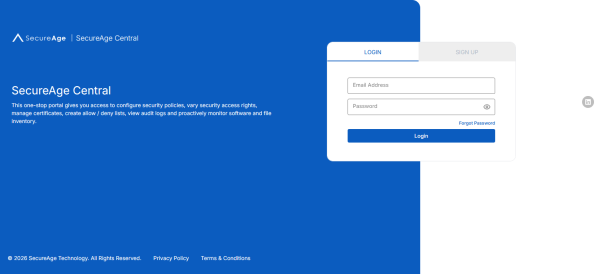
1. Log in to your SecureAge Central.
2. On the CatchPulse Account Portal Summary page, click on Policy.
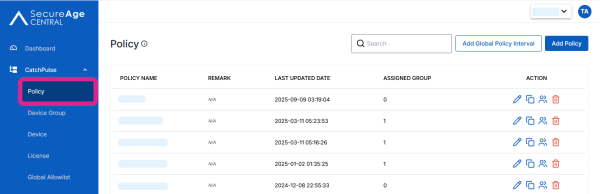
3. On the Policy page, click Add Policy or any existing policies that you've created earlier.
4. In the Edit Policy tab → Cloud AV sub-tab, set the preferred Start Time and End Time of Daily Full System Scan Schedule. Cloud AV will pick a time within the specified time range.
Support and feedback
Should you encounter any issues using CatchPulse with any of the mentioned or missed requirements above, you can write to us at docs@secureage.com.
This page was last updated: May 12, 2026