
Import Allowlist via Command Line
CatchPulse Pro users can remotely manage the allowlist of their CatchPulse installations through the use of the CatchPulse Account Portal. Remote online allowlist management comes in two forms: Global Allowlist Management via My Approved Allowlist or Review and Approve File Allowlist Requests.
More on CatchPulse Pro remote allowlist management features
For users who wish to allowlist Windows files (after a major update), you can do so by following the steps below
Prerequisite: Allowlist Windows files
-
On a sample machine that has CatchPulse installed and implemented with Windows update, ensure that the necessary Windows files have been allowlisted.
-
Export the allowlist by following the method below:
-
Launch main console, navigate to CatchPulse → Manage → Application Control
-
CatchPulse Pro users can remotely manage the allowlist of their CatchPulse installations through the use of the CatchPulse Account Portal. Remote online allowlist management comes in two forms: Global Allowlist Management via My Approved Allowlist or Review and Approve File Allowlist Requests.
-
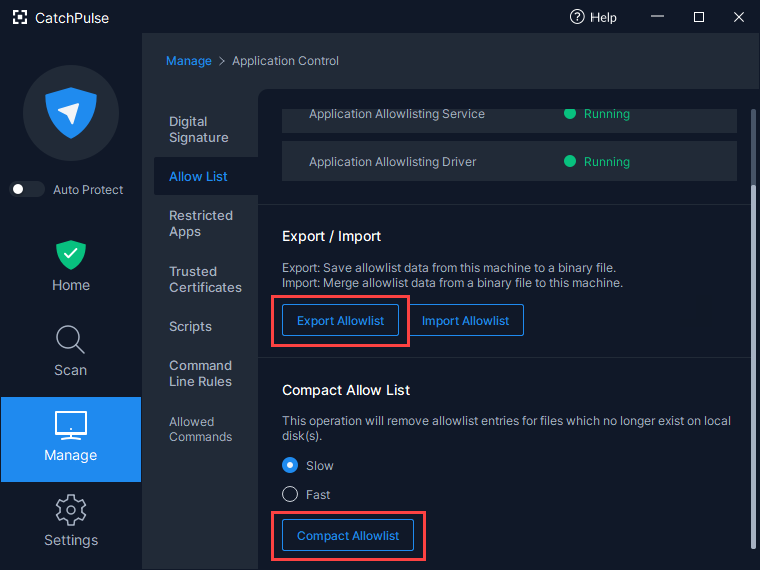
In the Manage menu, click on Application Control → Allowlist
-
In the Allowlist tab, click on the Export Allowlist button.
-
Retain the allowlist file name and file extension as it is (sawhitelist.dat).
-
Next, there are two ways in which you can import the allowlist into the target machines.
Method 1
-
Copy the exported sawhitelist.dat into C:\Program Files\SecureAge\Whitelist folder.
-
Next, use the following command line to import the file:
CopyC:\Program Files\SecureAge\Whitelist\saappsvc.exe /install
Method 2
-
Put your sawhitelist.dat file at the location where everybody can access, for example,
Copy\\MyServer\public\sawhitelist.dat -
Next, use the following command line to import the allowlist:
CopyC:\Program Files\SecureAge\Whitelist\CatchPulse.exe /import " \\MyServer\public\sawhitelist.dat"
Support and feedback
Should you encounter any issues using CatchPulse with any of the mentioned or missed requirements above, you can write to us at docs@secureage.com.
This page was last updated: March 10, 2026