
Set Silent mode in CatchPulse
In Silent Mode, you will never get prompted by CatchPulse. Your Application Allowlisting mode will be switched to Lockdown Mode. This means that any untrusted applications will be automatically blocked if they attempted to run and viruses detected by real-time scanning will be automatically quarantined.
Follow these instructions to set CatchPulse to Silent Mode:
-
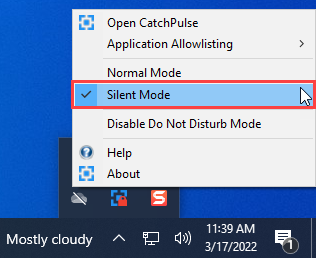
Right click on CatchPulse tray icon, click on Silent Mode.
-
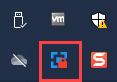
The CatchPulse icon in the system tray will display the Lockdown icon and Application Allowlisting mode will be set to Lockdown Mode.
Note that when you perform a Full System Scan, Silent Mode will be automatically switched to Normal Mode.
Support and feedback
Should you encounter any issues using CatchPulse with any of the mentioned or missed requirements above, you can write to us at docs@secureage.com.
This page was last updated: March 10, 2026