
Uninstall CatchPulse
It is best to uninstall CatchPulse using its dedicated uninstaller.
To completely remove CatchPulse from your PC:
-
Find and Open the CatchPulse Uninstaller
-
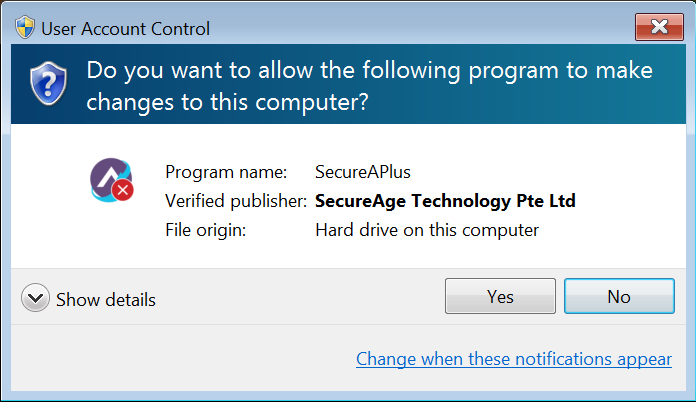
On Windows 7,
Click on Start → All Programs → SecureAge → Uninstall CatchPulse.
-
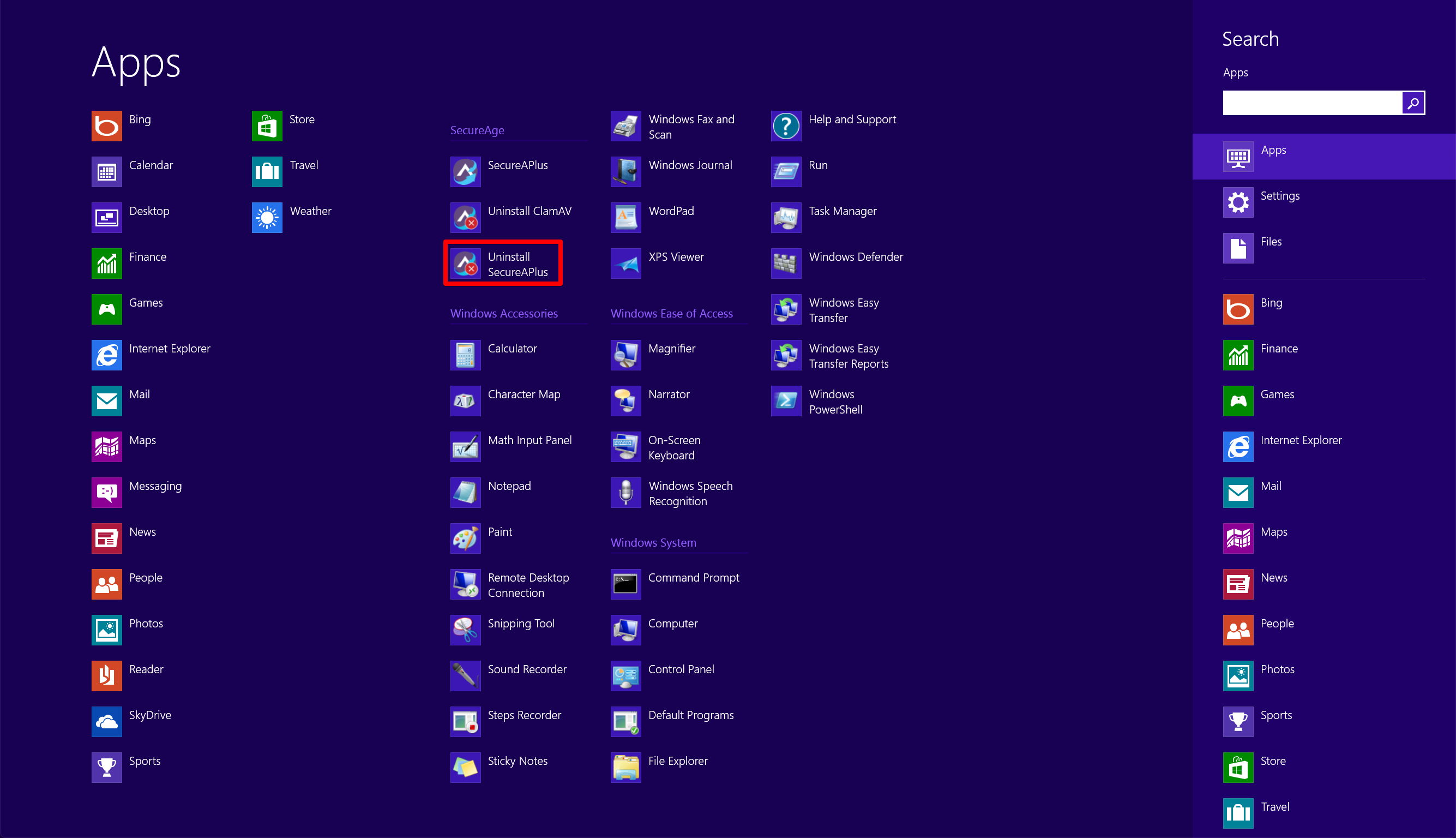
On Windows 8 or 8.1
Open the Metro Start Menu → Programs → Uninstall CatchPulse.
-
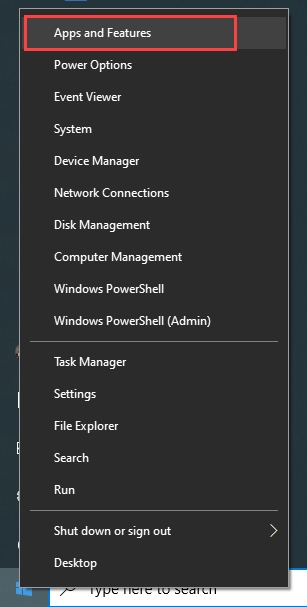
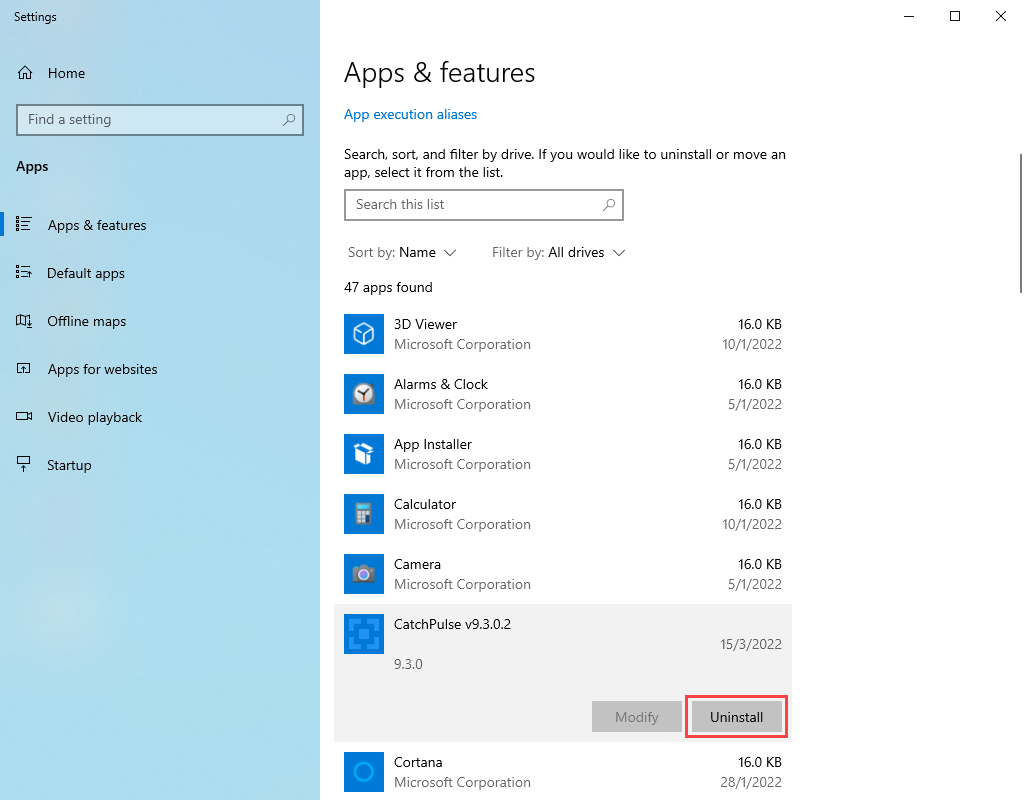
On Windows 10
Right-click on the Start Menu → Apps and Features → Select CatchPulse vx.x.x → click on Uninstall/ Change.
-
-
Follow the on-screen instructions to begin the process of uninstalling CatchPulse from your PC.
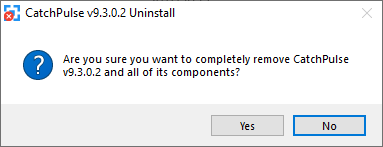
-
Take the [optional] uninstall survey and complete the process by restarting your computer.
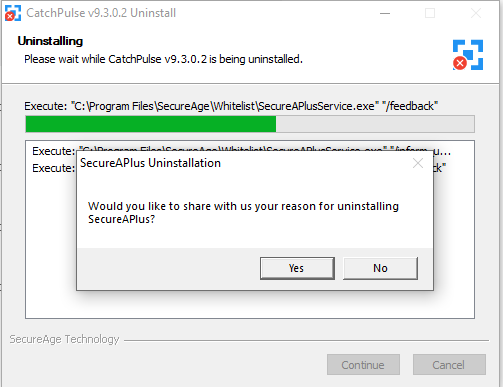
A few features such as some of the anti-virus functionality will remain in memory until the next reboot. It is advisable to restart your computer to complete the uninstallation of all components of CatchPulse.
-
CatchPulse will be completely uninstalled from your system after the next reboot.
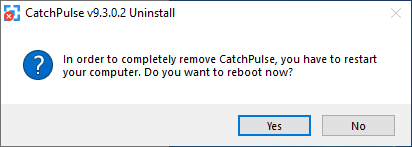
-
Deactivate your CatchPulse Device if it is tied to your CatchPulse Account.
Optional: While optional, this step is recommended if users intend to carry over a CatchPulse Pro or Extended CatchPulse Standard license on a new machine.
If the above method doesn't work, uninstall CatchPulse in Safe Mode
-
Windows 7 and earlier:
-
Reboot the computer, and press F8 key while it is rebooting.
-
Use the arrow keys to select safe mode and press Enter to reboot Windows 7 in safe mode.
-
Note: If these steps do not completely remove CatchPulse, please do not hesitate to contact us.
Support and feedback
Should you encounter any issues using CatchPulse with any of the mentioned or missed requirements above, you can write to us at docs@secureage.com.
This page was last updated: March 10, 2026