
Disable offline antivirus and universal AV after installing
To disable offline antivirus and universal AV in SecureAPlus settings after installing
-
Launch SecureAPlus by clicking on the SecureAPlus tray icon.
Note: While the Initial Full System Scan is still in progress, clicking on the tray icon will reopen the initial scanning window.
Alternatively, you can open SecureAPlus by right-clicking on the tray icon and selecting “Open SecureAPlus“.
-
SecureAPlus Main Console appears.
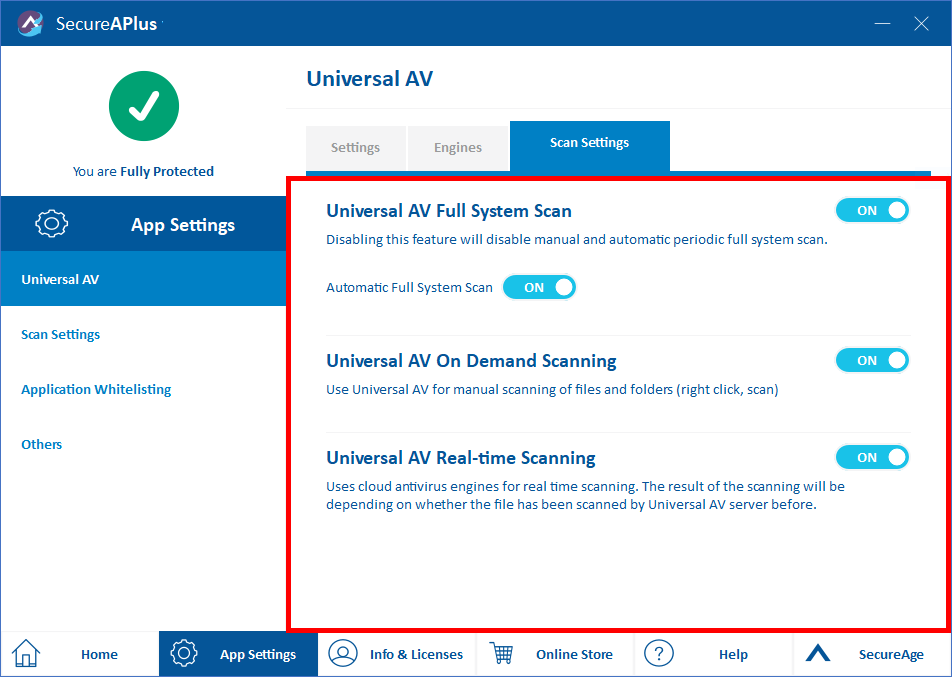
Click on the App Settings → Universal AV on the left panel → Scan Settings tab and disable Universal AV.
-
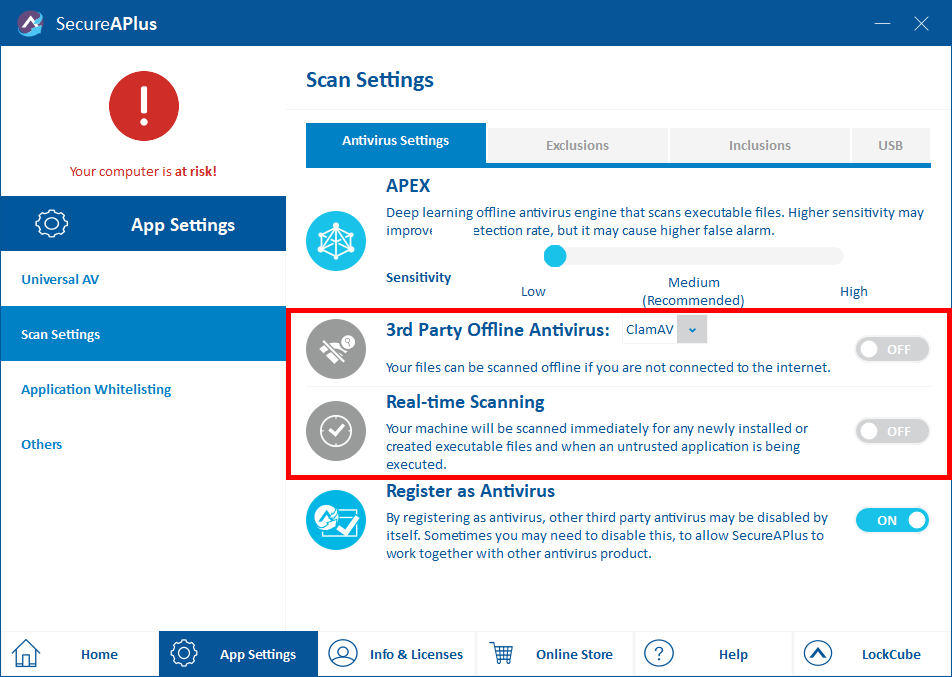
Next, click on Scan Settings on the left panel.
-
Under the Antivirus Settings tab, disable the Offline Antivirus.
Support and feedback
Should you encounter any issues using SecureAPlus with any of the mentioned or missed requirements above, you can write to us at docs@secureage.com.
This page was last updated: December 02, 2025