
Add licenses to my account
A SecureAPlus license is automatically associated with your account if you have purchased SecureAPlus Pro License from our online store.
The user may opt not to immediately enter the license to the installation of SecureAPlus due to the following reasons:
-
The current SecureAPlus Pro License is not expired/ expiring soon.
-
SecureAPlus Pro License will be used on a device that has yet to be used.
If you receive a SecureAPlus Pro license through other means, here is how you can manually associate a license to your account without having to activate it:
-
Log in to your SecureAPlus Account and click on My Licenses.
-
On the SecureAPlus Pro Licenses page, click on Add License.
-
Enter your Pro License code and click on Next.
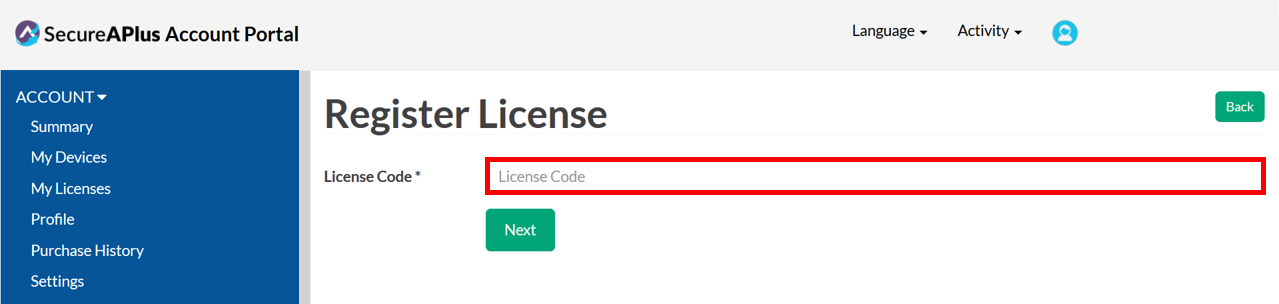
-
The code will be verified and you will receive a confirmation that it has been successfully added to your account.
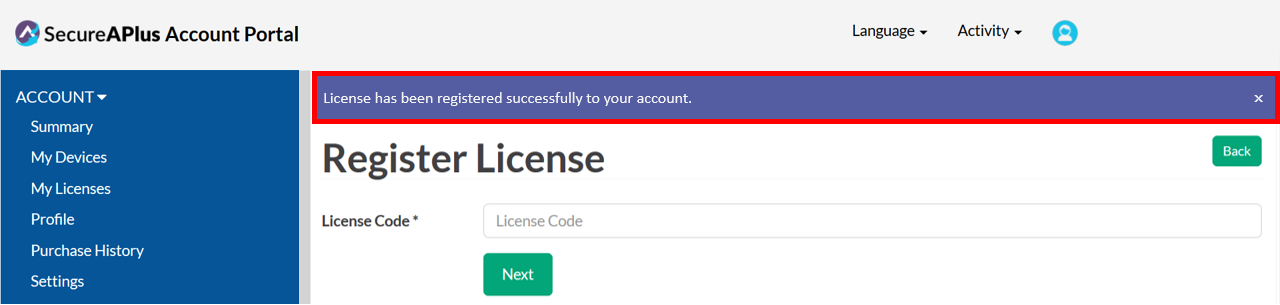
-
Go back to the My Licenses page and the new license will be added to the list with complete information to the license type but without an Activation and Expiry date.

Note: Once a license has been associated with a SecureAPlus Account, it can no longer be added to another SecureAPlus Account. This is a good way to prevent anyone else from using an unused license that you have.
Note: Finally, used licenses can be transferred from one device to another if reinstalling the OS, upgrading to another device, or when a device is lost/ broken.
Support and feedback
Should you encounter any issues using SecureAPlus with any of the mentioned or missed requirements above, you can write to us at docs@secureage.com.
This page was last updated: December 02, 2025